How to download and use SimplyPlan

Managing your plan on the go
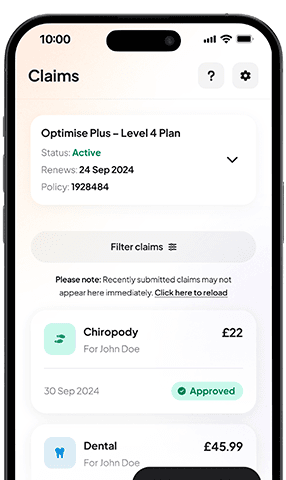
SimplyPlan is an app that makes managing your plan and claiming quick and straightforward for mobile and tablet users. It uses the same sign-in details as your online account, and once downloaded, you can claim as soon as you’ve had your treatment, take photos of your receipt within the app, and track claims history and entitlements on the go.
How to download our SimplyPlan app
If you're on a mobile device
If you're reading this on your mobile or tablet, and want to download SimplyPlan onto that device, click the relevant app store button below. You'll be taken to the app listing, and you can click download from there.


If you're on a laptop or computer
If you’re reading this on your laptop or computer, have your phone or tablet ready next to you and follow these instructions:
Unlock your device and open the app store
In the search bar of your app store, type SimplyPlan and press search
Click on the app titled SimplyPlan by Simplyhealth, our logo is the icon
You’ll be taken to the information page, and from there, press install or download
The app will be installed on your phone. Once installed, go to your home screen and find the icon. Tap it to open your app

Finding your way around the SimplyPlan app
Watch the video to discover SimplyPlan and learn how to use the app, as well as a walk-through of the claiming process.
Please note: The first part of the video goes through the registration process which you may have already completed online. If this is the case, your sign-in details are the same for the app as they are for the website.
Step-by-step to claiming online
To get started, you'll need to be on your online account homepage. You can get there by clicking My Account in the top right-hand corner of this page.
Sign in to your account (if you're already signed in, you can skip this step) and be on your online account homepage.
Find Make a new claim in either the dashboard or in the menu and click on it.
The next step is to make sure you have what you’ll need to make a claim. Read what’s required and if you’re ready, upload your receipt.
Click the Choose file button, find the digital copy of your receipt on your computer or device, click the file, and press Open. It will upload the file for you and then show a preview. If the correct file has been uploaded, click Continue.
You’re now on the Review details page, where you can fill in the treatment details:
Enter the required information under Claim details:Treatment date
Policy
Claimant
Select Add treatment. A new Treatment details box will appear where you can enter:
Treatment type
Treatment cost
Review the claim summary, including:
Entitlement balance
Treatment amount
Payback rate
Amount you’ll be paid
Click Save treatment at the bottom to finish.
You’ll return to the main claims page, where you'll need to provide the practitioner's details.
Read the declaration and, if happy, click Submit claim.
Your claim will be processed. This can take up to 5 working days. You can always view your claims history and see the progress of any recently submitted claims by clicking on Claims on your dashboard. You will also receive an email confirming that your claim has been received.
More online support

How to register and sign in to your online account

How to make a claim online

Useful links
Help is available
If you have any questions about using your online account or the SimplyPlan app, get in touch with our team on 0300 100 1024.